Sign-in help
Signing in to Jody Pries Pickleball
There are two ways to sign in: with your Google account, or with a one-time email link. Both create your account the first time you use them — there is no password to remember.
Two ways to sign in
You can sign in with Google or with a one-time link we email you. Use whichever is easier — if both options share the same email address, they sign you into the same account.
The sign-in screen looks like this:
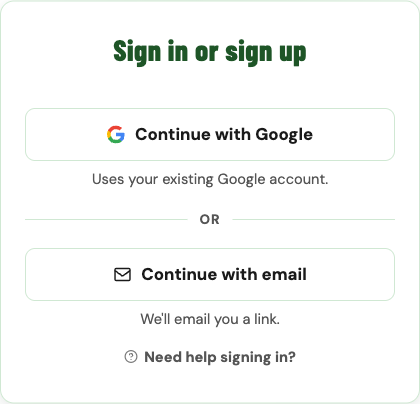
Continue with Google
Choose this if you already use Google or Gmail for the email address you want associated with your account. Google handles the sign-in, then sends you back to our site.
-
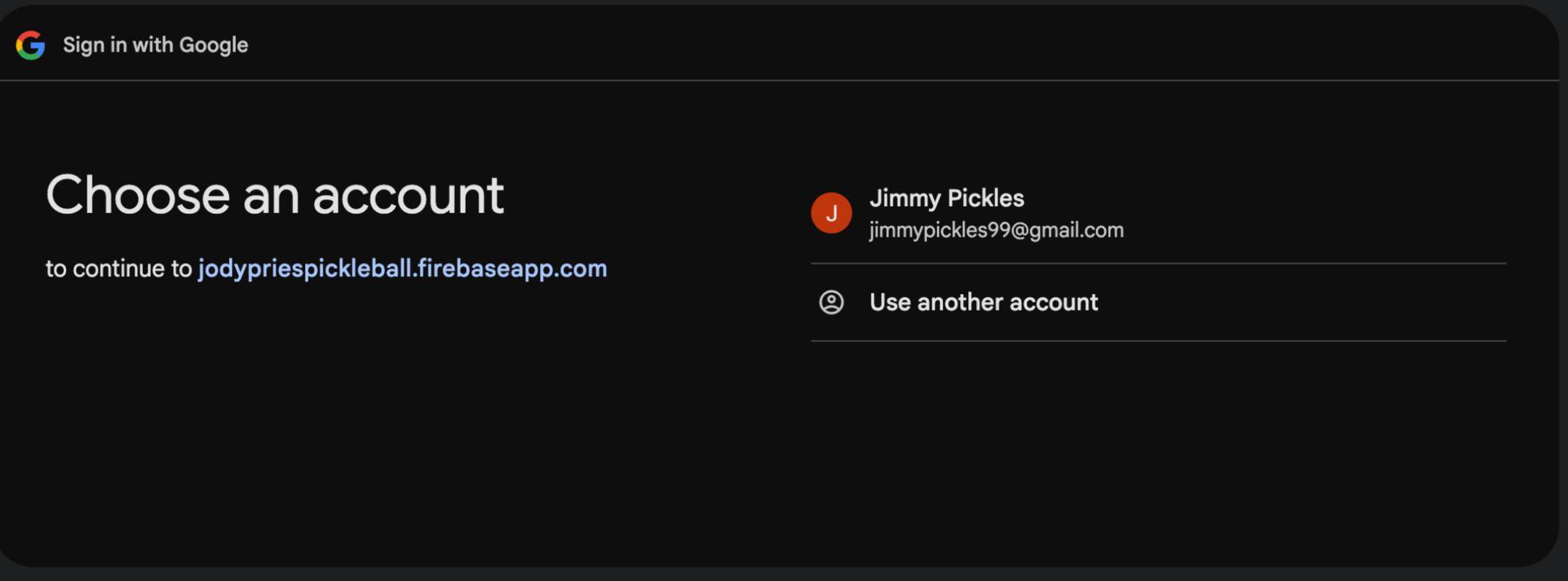
On our sign-in screen, click Continue with Google. Google may open a new window and show you a list of accounts. Pick the one you want to use.
-
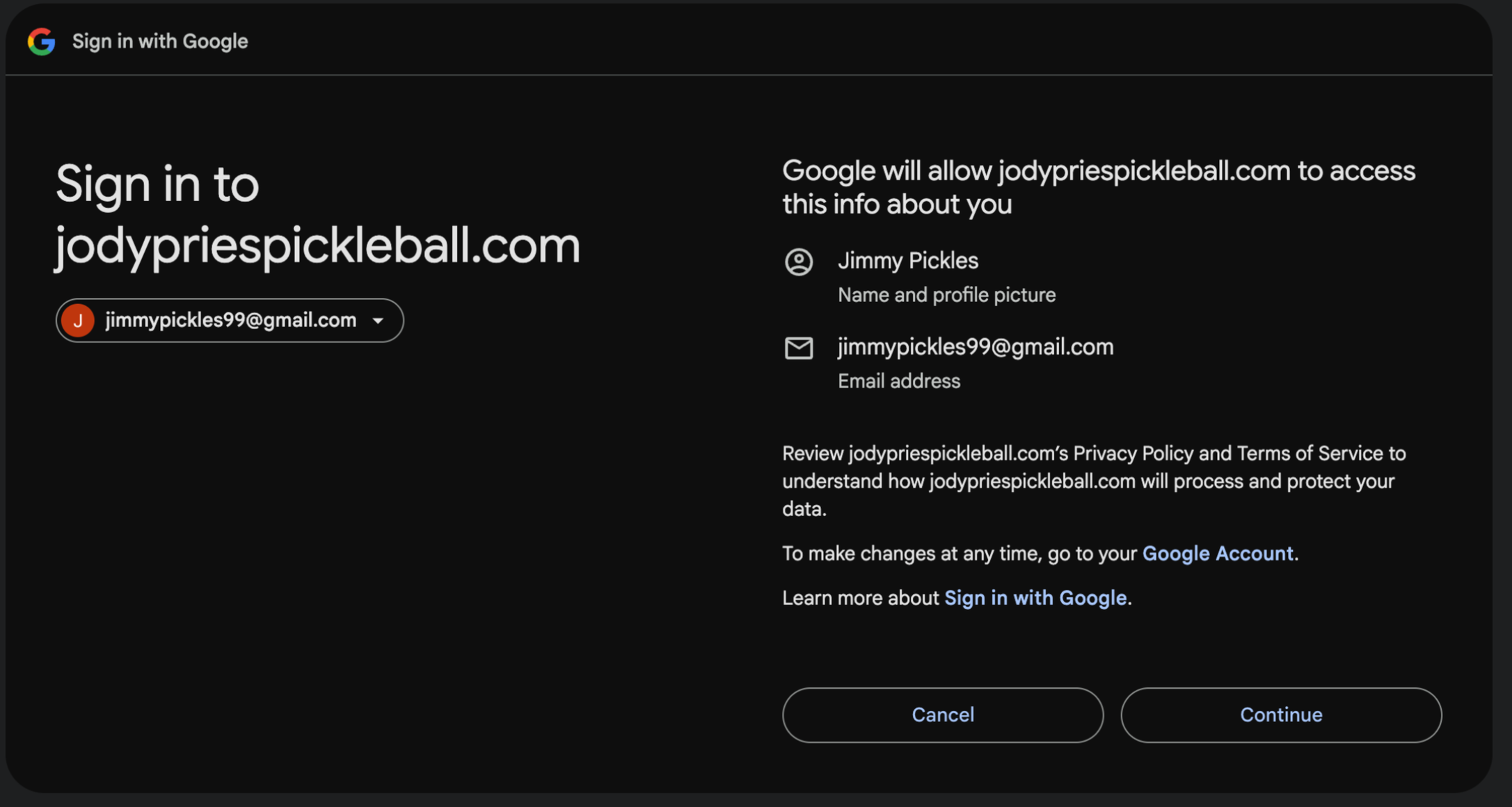
Google will then show you what it's about to share with our site — your name, profile picture, and email address. Review and click Continue.
-
You'll be returned to our site, signed in, and taken to your account page.
Continue with email (no password)
Choose this if you'd rather not use Google sign-in, or if you want to use a non-Google email. We email you a one-time link that signs you in when you click it — there's no password to remember.
-
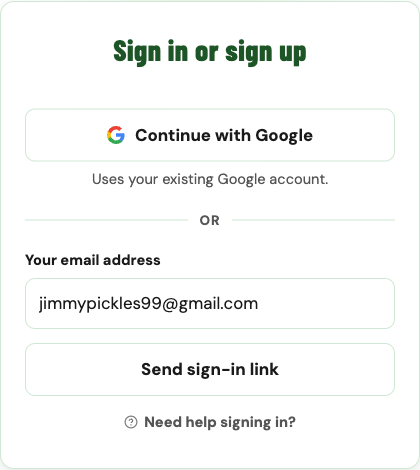
On our sign-in screen, click Continue with email. A field for your email address will appear.
-
Type your email address and click Send sign-in link.
-
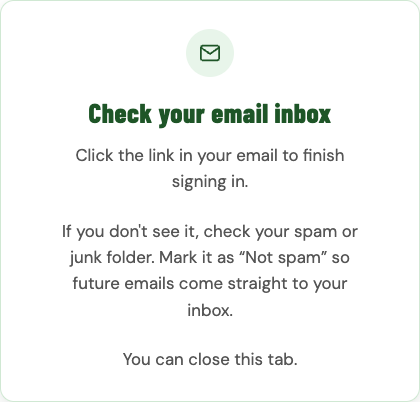
The page will switch to a "Check your email inbox" confirmation. You can leave the tab open or close it — either works.
-
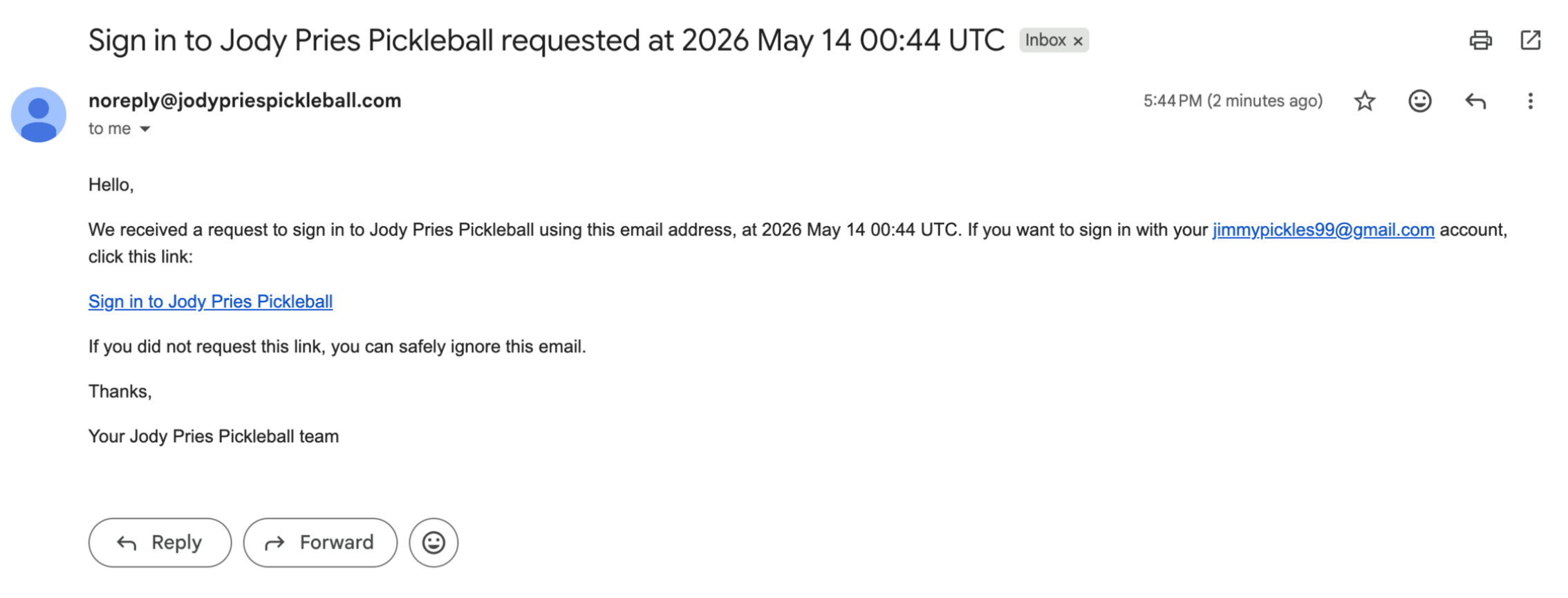
Open the email from noreply@jodypriespickleball.com. The subject starts with "Sign in to Jody Pries Pickleball".

When you open it, it looks like this:
-
Click the Sign in to Jody Pries Pickleball link inside the email. You'll be brought back to our site, signed in, and taken to your account page.
If you opened the link on a different device than where you started: the site will ask you to re-enter the email address you used. This is a security check — typing it in again is safe, and sign-in will complete.
If the email lands in spam
Our sign-in email comes from noreply@jodypriespickleball.com. The first time we email a new address, some inboxes flag it as spam — so if you don't see the email in your inbox within a minute, check your Spam or Junk folder.
Find it
Open your Spam (Gmail), Junk (Outlook, Apple Mail), or your provider's equivalent folder. Search for the sender noreply@jodypriespickleball.com or the subject "Sign in to Jody Pries Pickleball".
In Gmail: find the Spam folder, then "Report not spam"
In the Gmail sidebar, click More if needed to expand the folder list, then click Spam.
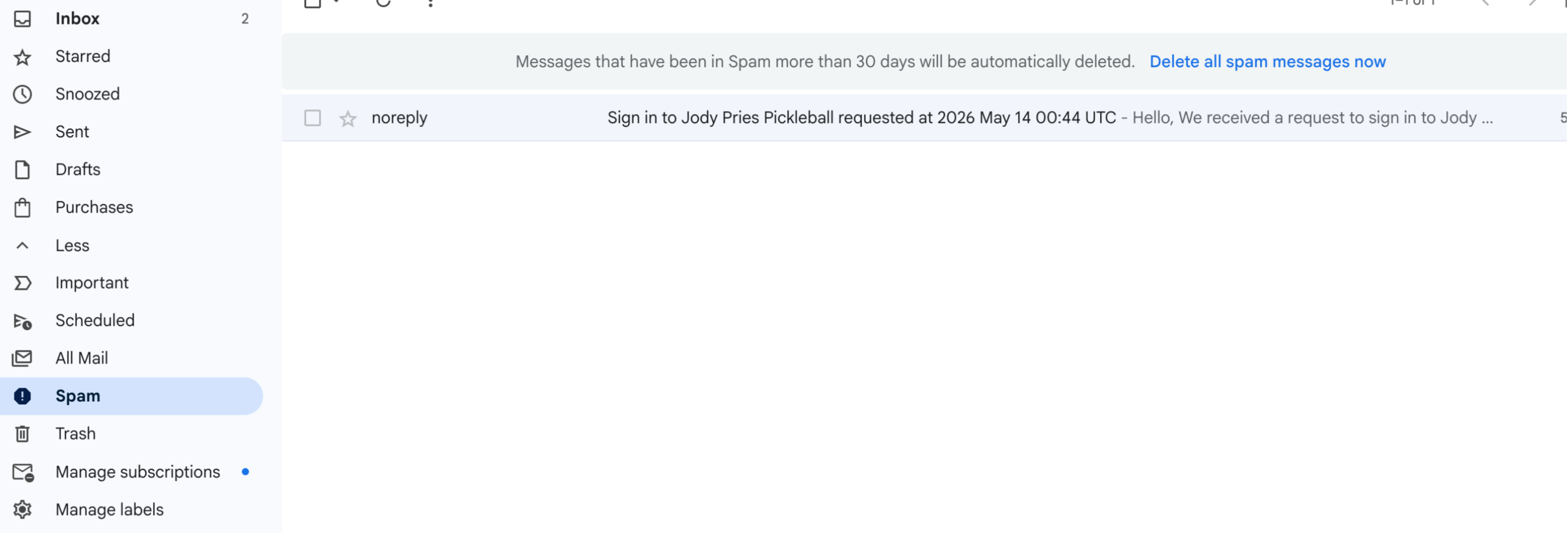
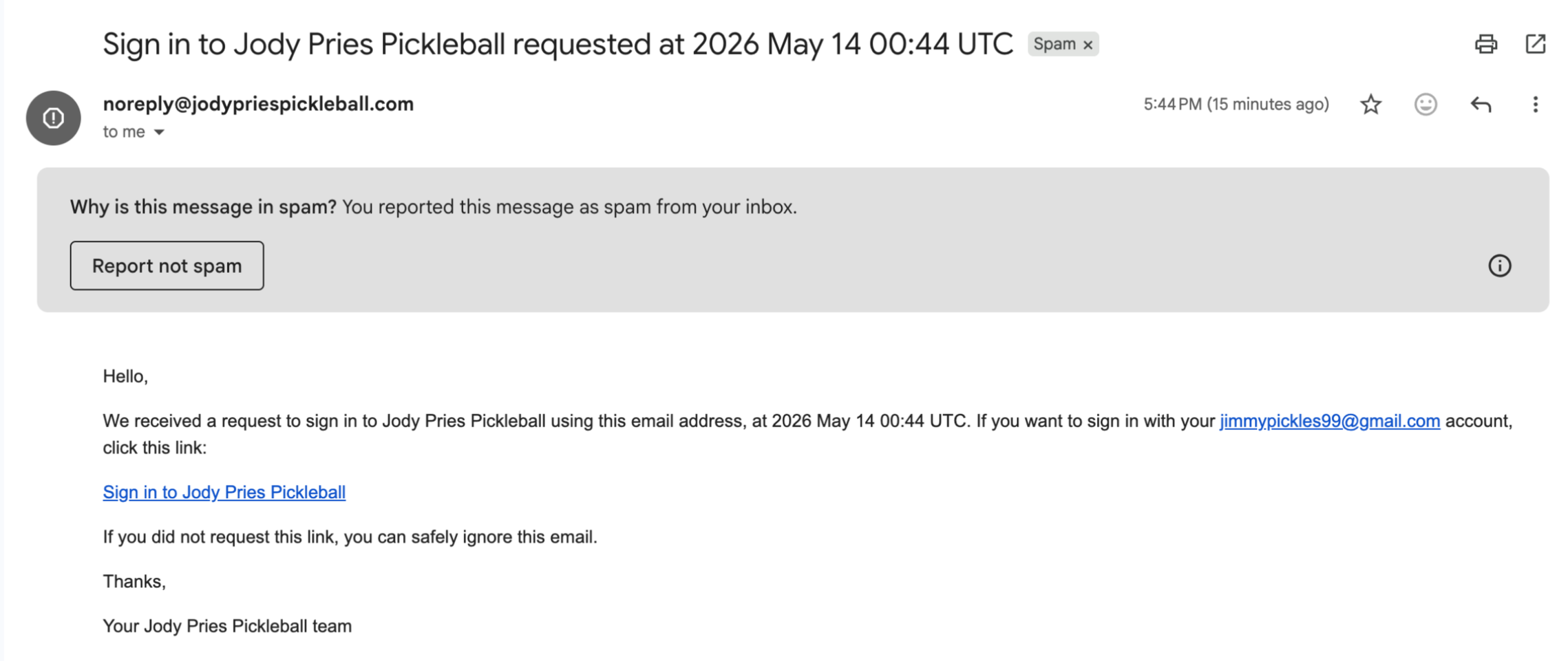
Open the sign-in message. At the top, Gmail shows a banner that says "Why is this message in spam?" Click Report not spam. The message moves to your inbox, and future sign-in emails should arrive there directly.
In Outlook or Outlook.com
In the Outlook folder list, click Junk Email (sometimes shown as Junk).
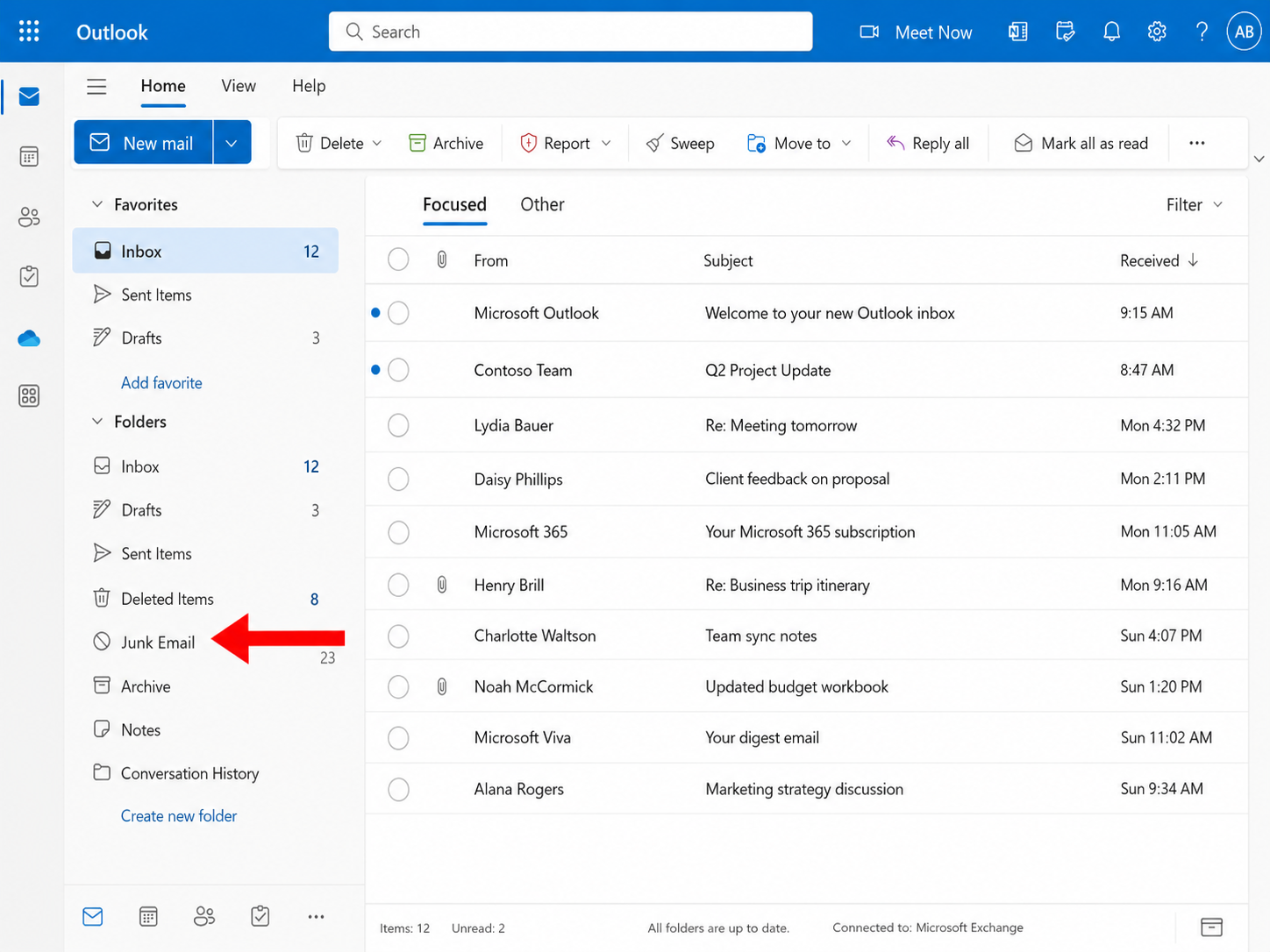
Right-click the sign-in message and choose Mark as not junk, or open it and use the Not junk action in the toolbar.
In Apple Mail / iCloud Mail
In the Apple Mail sidebar, click Junk to open the folder.
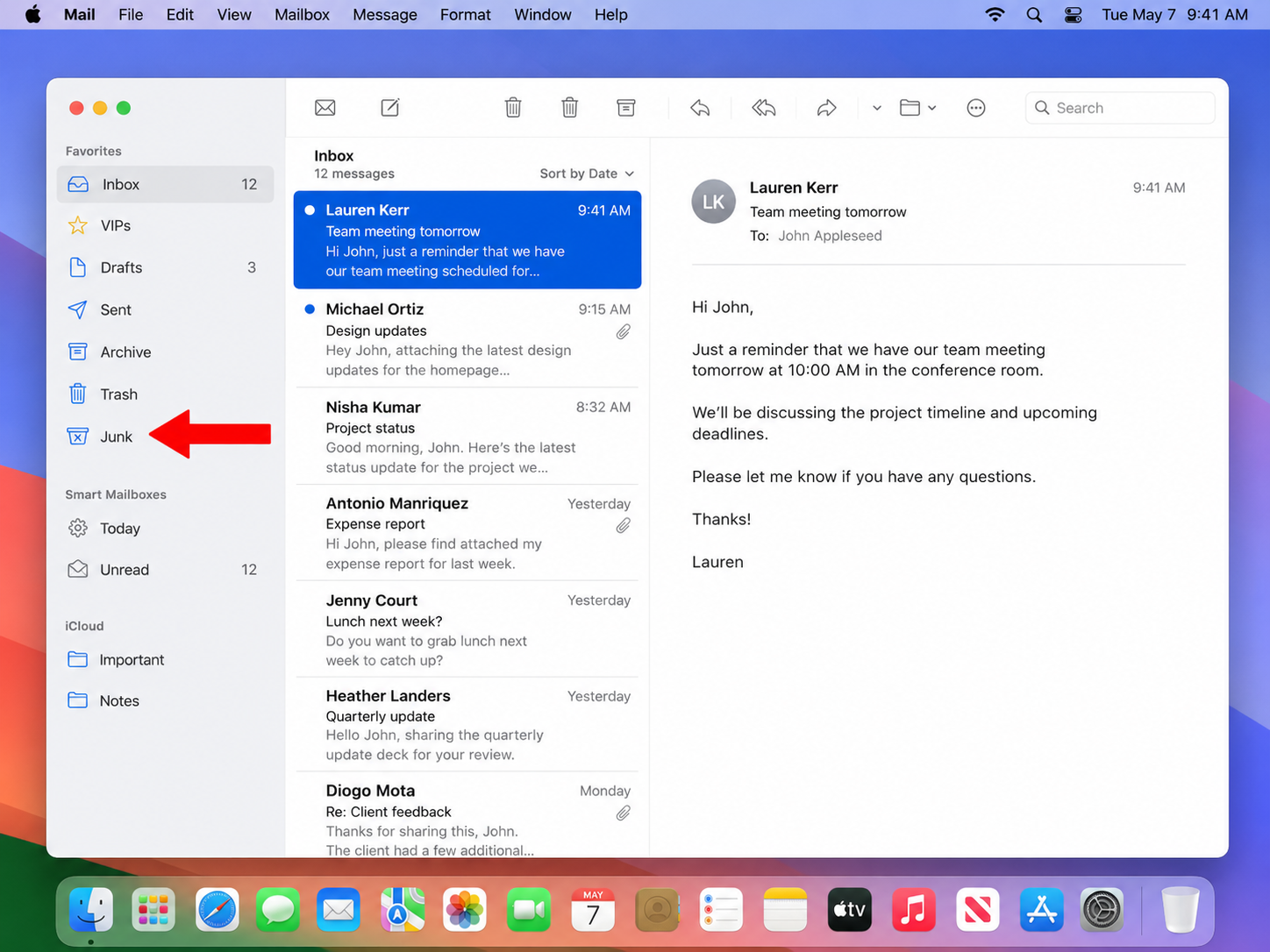
Open the sign-in message, then click Not Junk in the toolbar. The message moves to your inbox, and future sign-in emails should arrive there directly.
Tip
Add noreply@jodypriespickleball.com to your contacts so future sign-in emails skip the spam filter entirely.
Troubleshooting
- The link didn't work, or said the “action code is invalid”. Sign-in links work once, only your newest link works, and they stop working after 6 hours — so if you have more than one sign-in email, older ones are already dead. Return to sign in and request a fresh link, then open that one.
- I clicked the link on a different device. The site will ask you to re-enter the email address you used to start sign-in. This is a security safeguard. Once you enter it, sign-in will complete.
- I'm signed in as the wrong account. Sign out from your account page, then sign in again with the email you want to use.
- Google says the site is asking for too much information. The site only asks for your name, profile picture, and email — exactly what the Google consent screen lists. If you'd rather not share these, use the email link option instead.
- The "Continue with Google" button doesn't do anything. Your browser may be blocking pop-ups. Allow pop-ups for this site, or use the email link option.
Still stuck? Send us a note and we'll help you in.
Go to Contact